Choose products, create checkout links, and sell faster
- Pathao Commerce
- July 26, 2026
A customer drops a message on Facebook. Someone comments on an Instagram post. Another enquiry comes through WhatsApp. Interest builds everywhere, all at once.
But the usual process slows everything down. Names are copied, addresses are typed, and orders are created manually across different systems. Pathao Commerce removes this gap between interest and purchase.
With Instant Checkout, every conversation can turn into a completed order through a simple link. Even better? You don’t even need a pre-uploaded online catalog to start selling. Customers fill in their own details and place the order, while everything stays completely connected in one centralized dashboard.
How to Create Orders and Deliver Successfully
You can generate an Instant Checkout link from three convenient entry points on your dashboard: the Global Header, a specific Product Card, or directly inside the Live Chat area.
Option A: Create a Single Product Link
- Start from your Pathao Commerce dashboard.
- Navigate to the Products section or simply use a Product Card.
- Click the Instant Checkout button next to the desired product.
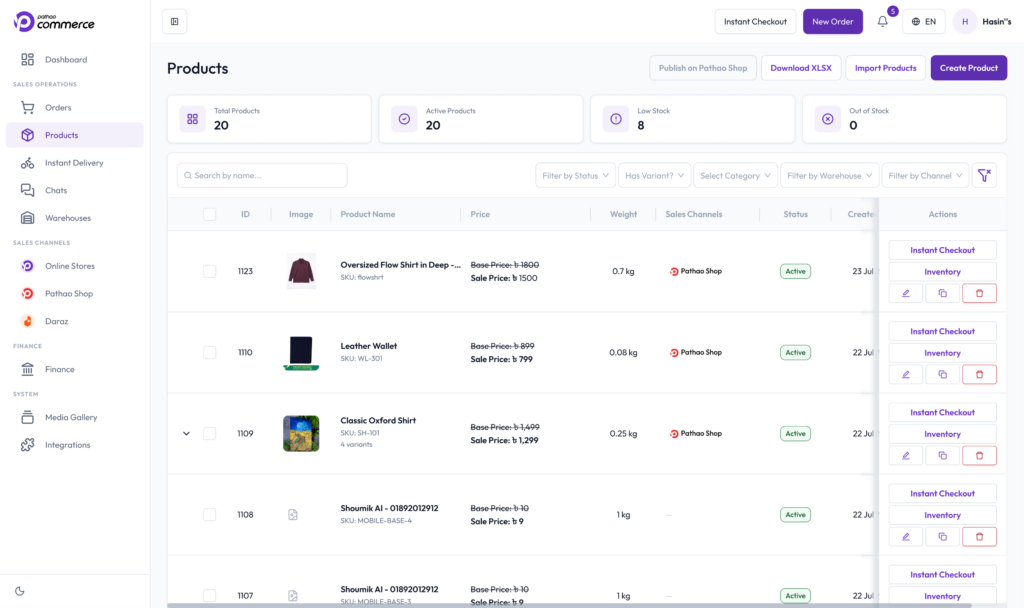
- Select the required color, variant, and quantity.
- Select the appropriate Warehouse. Delivery costs are calculated automatically based on this, so choosing the nearest warehouse keeps your shipping highly efficient.
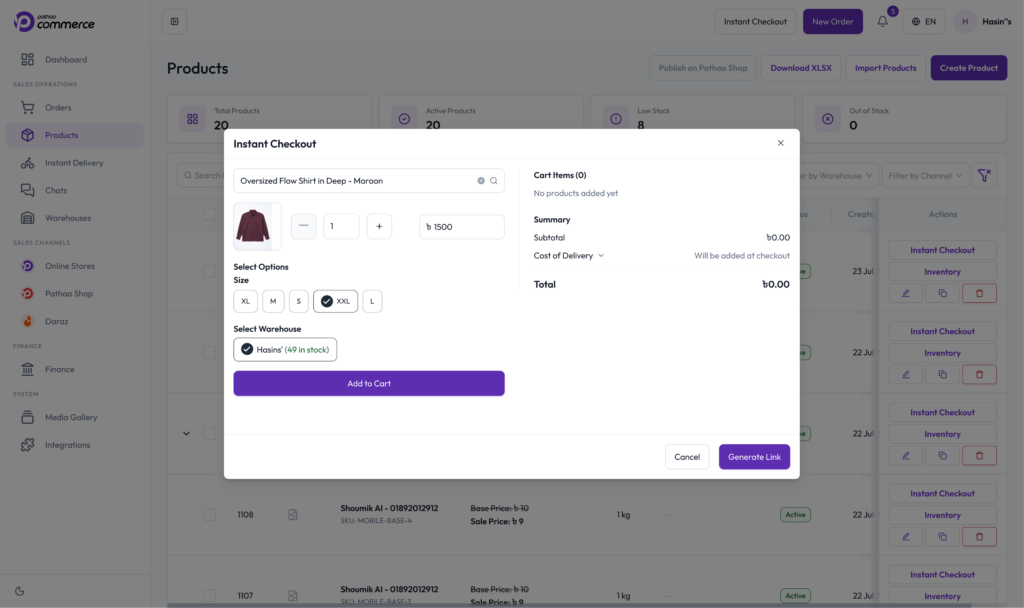
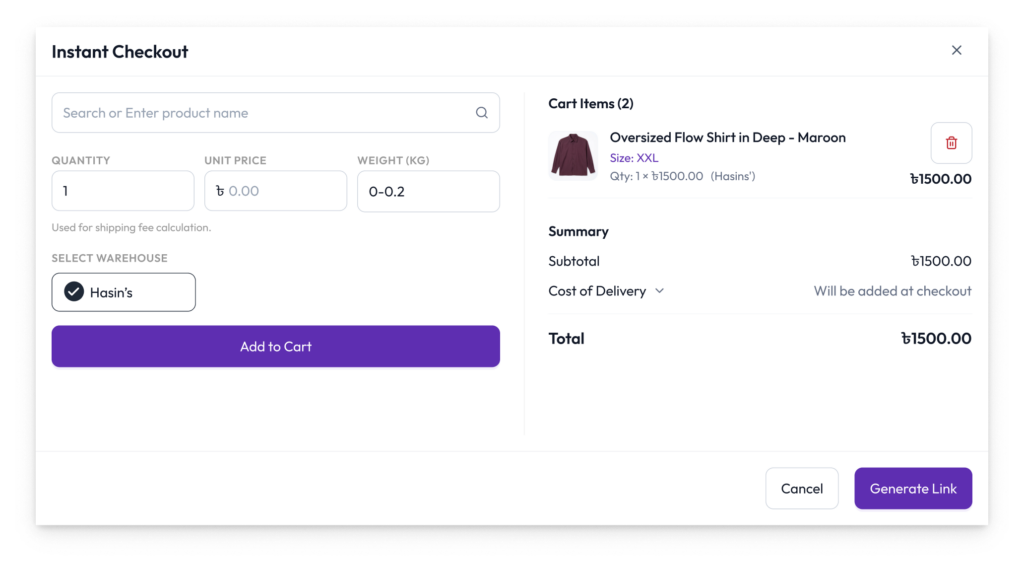
- Click Get Checkout Link, copy the link, and share it directly into your customer’s DM.
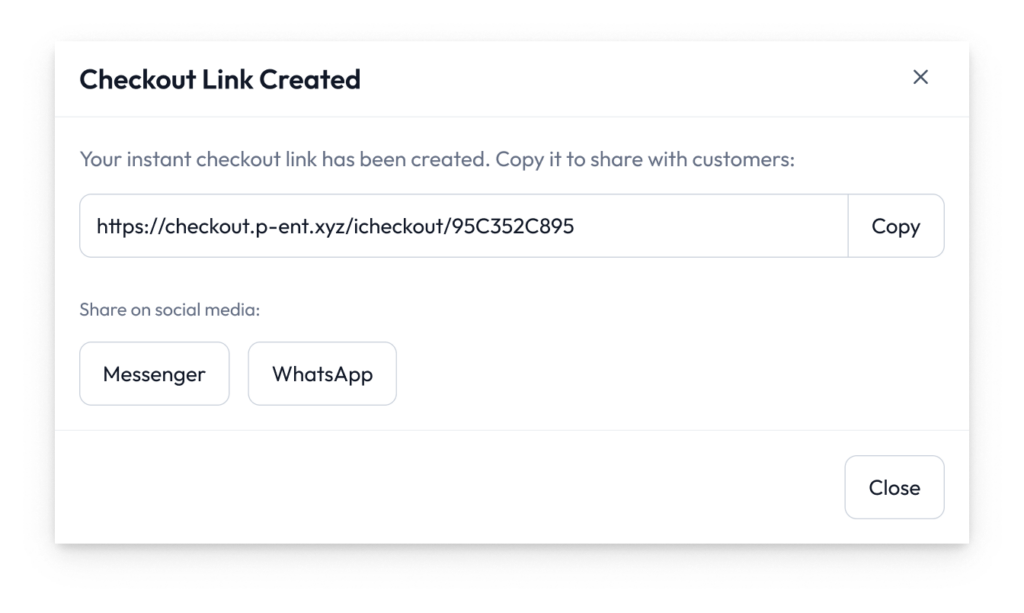
Pro-Tip: Need to offer a special deal? You can manually adjust the product price directly in the flow before generating the link!
Option B: Create a Link with Multiple Products
- Log into your Pathao Commerce Dashboard and click the Instant Checkout button located on the Global Header or within the Chat action area.
- Under Add product to cart, choose your first product, select its variant/color, set the quantity, and choose the warehouse.
- Click Add to Cart.
- Repeat this process to add remaining items to the cart.
- Once all items are added, click Get Checkout Link, copy the generated URL, and paste it straight into your customer’s chat.
No Catalog? No Problem! (Product-on-the-Go)
If a customer wants a custom bundle, an item you haven’t uploaded yet, or a personalized order, you don’t have to pause to update your system. You can create a “Product on the Go” directly inside the Instant Checkout builder by typing in the minimum required details. Add it to the cart, generate the link, and keep the sale moving!
Part 2: Customer Action
The checkout link is built for ultimate speed; the customer doesn’t even need to download an app or create an account. They simply open the link and:
- Enter their name.
- Enter their mobile number.
- Enter their delivery address.
From there, they choose their preferred payment method (Digital Payment or Cash on Delivery) and click to confirm.
Part 3: The Automated Delivery Process
The moment the customer clicks confirm, the system takes over.
Because Instant Checkout orders are verified by the customer, they entirely bypass the “New Orders” queue. You do not need to manually click “Accept” or “Ready to Ship”. The order lands directly in your Processing tab, and a booking is instantly, automatically created in the Pathao Courier backend.
A Pathao Courier agent will call you as usual to schedule the pickup. All you have to do is hand the parcel over to the rider!
What to Do If Something Goes Wrong (The Recovery Process)
Because Instant Checkout orders fast-track straight into the courier pipeline, the shipping details are immediately locked by the system. If a customer messages you immediately after ordering to change their address or add another product, the order cannot be edited directly.
How to fix it:
- Head to your Processing tab on the dashboard.
- Find the order and click the Cancel Order button.
- Note: You can easily cancel the order yourself, provided it is still in the “Processing” state.
- Once canceled, simply generate a fresh checkout link with the corrected information or the additional products, and send it to the customer.
Pro-Tips for Professional Sellers
- Zero-Friction Operations: Since customers enter their own names, phone numbers, and locations directly, delivery typos and incorrect addresses drop drastically.
- Stuck Link? Check Your Cart: If the “Get Checkout Link” button is greyed out, double-check that you have added at least one item (either a catalog item or a product-on-the-go) to the cart first.
- Missing Order? Check “Processing”: If a customer swears they placed an order but it’s not showing up under “New Orders”, don’t panic! Check the Processing tab, Instant Checkout orders jump straight there.
Every message carries intent. Instant Checkout turns that intent into actual revenue without switching tools, fixing typos, or manually inputting data. A conversation becomes a fulfilled order, and the system takes care of the rest.
With Pathao Commerce Instant Checkout, social selling becomes structured, automated, and incredibly fast. Spend less time on logistics, and more time growing your business.
Grow your business faster, the smart way, with Pathao Commerce.