One unified inbox for all your messages

What is the biggest hassle of running an online business?
A customer sends you a message on Facebook. You chat with them and confirm the order. Then you have to open another tab or a notebook and manually enter the customer’s name, address, phone number, and product details. While jumping from one tab to another, wrong orders can slip through, and customers can get frustrated too from all the back-and-forth.
Pathao Commerce brings the perfect solution to this problem for smart sellers in this digital age. Now, managing all your Facebook and WhatsApp messages and creating orders while chatting can be done from one single place. Let’s see how this feature can save time and help grow your sales with ease.
Connecting Your Sales Channels (Facebook & WhatsApp)
Before you can start chatting and creating orders, you need to link your social media channels to Pathao Commerce. You can do this in two easy ways:
-
From the Chat Menu: If no sales channel is connected yet, simply navigate to the Chat channel. You will see a connection button for Facebook/WhatsApp. Clicking this button will redirect you to the official Facebook/WhatsApp login flow. After a successful login, you will be automatically redirected back to the Commerce platform to start chatting.
-
From the Sidebar: You can also connect your Facebook or WhatsApp at any time by navigating to the Add-ons menu located in the left sidebar of your dashboard.
Confirm Orders Right from the Chat
Once connected, here is how the magic happens. The system is designed to intelligently pick up on what your customer wants so you don’t have to repeat manual tasks.
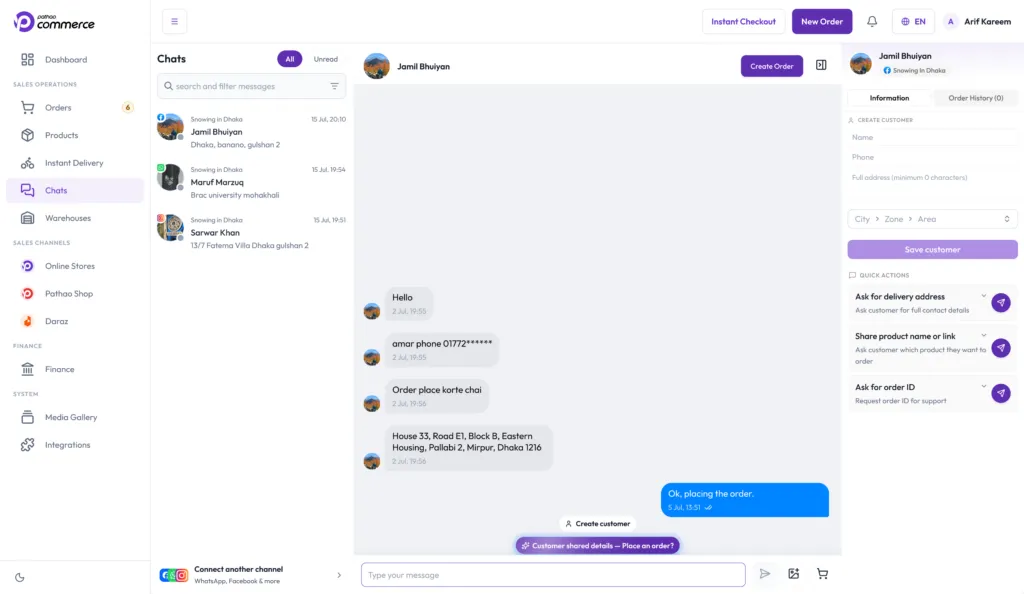
1. Open the Inbox
From the left sidebar of your dashboard, click on Chat.
2. Select a Customer
From the customer list on the left, click on the customer you want to talk to.
While chatting, you’ll be able to see the customer’s previous Order History and saved addresses in the right sidebar. If you enter a phone number, the system will even fetch the customer’s lifetime rating from Pathao Courier, helping you spot reliable buyers instantly!
3. Talk to the Customer
Type your reply in the message box and click the send icon. You can communicate with customers in real-time directly from here, without opening your Facebook Business account.
Want to save even more time? Use Quick Actions to send preset standard questions or answers with just one click!
4. Create an Order
While chatting, the system’s built-in Intent Detection might notice a customer is ready to buy and surface a floating Create Customer or Create Order action button. If not, simply click the red Create Order button located at the top of the chat window or click the Cart icon near the chat input for an Instant Checkout link.
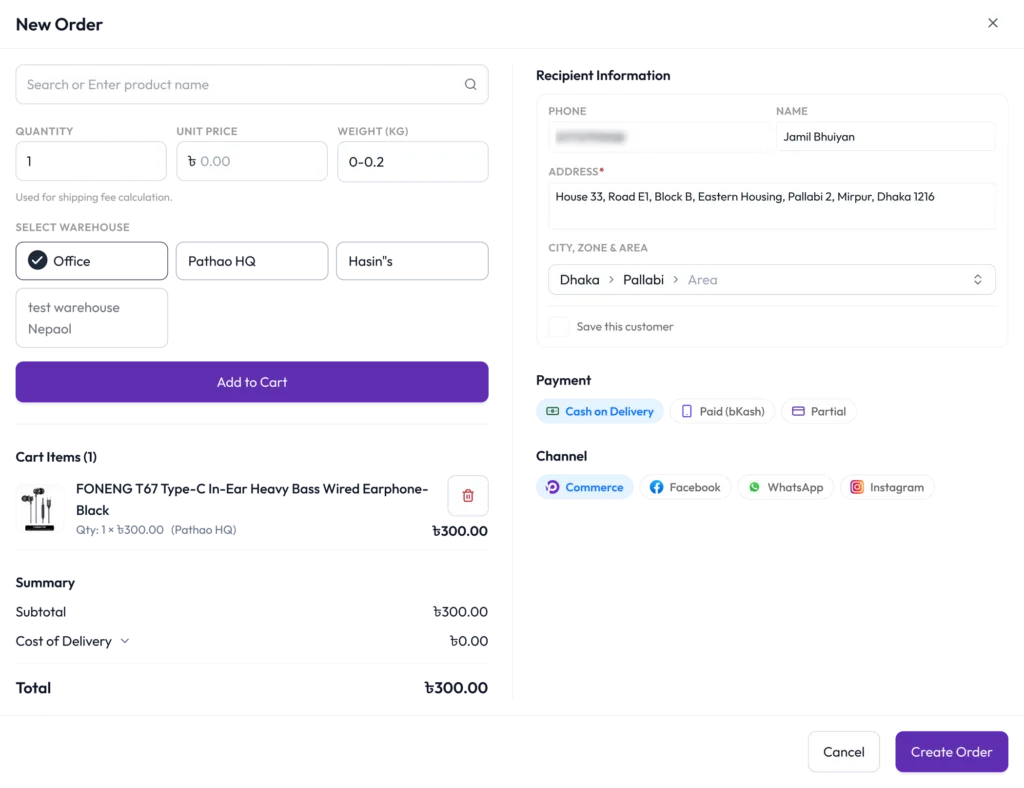
5. Enter Order Information
-
Customer Details: The customer’s name, phone number, and address will be automatically pre-filled from their chat profile if detected. You don’t need to enter them manually! Please note that the address must be at least 15 characters long.
-
Recipient vs. Buyer: If the person paying for the order is sending it to someone else as a gift or delivery, make sure to change the fields so the Recipient information represents the person actually receiving the package.
-
Add Products: Search for and select the product the customer wants, then select the product variant and the warehouse it will ship from.
-
Selling on the Go: If the customer wants an item that isn’t in your product catalog yet, don’t stress; you can create a new product on the fly directly inside the order flow without leaving the chat.
6. Select Channel and Payment Method
- Channel: Select the channel from which the customer sent the message. This ensures that the tracking link reaches the correct place.
- Payment: Select how the customer wants to pay: Cash on Delivery (COD) or Digital Payment.
7. Final Confirmation
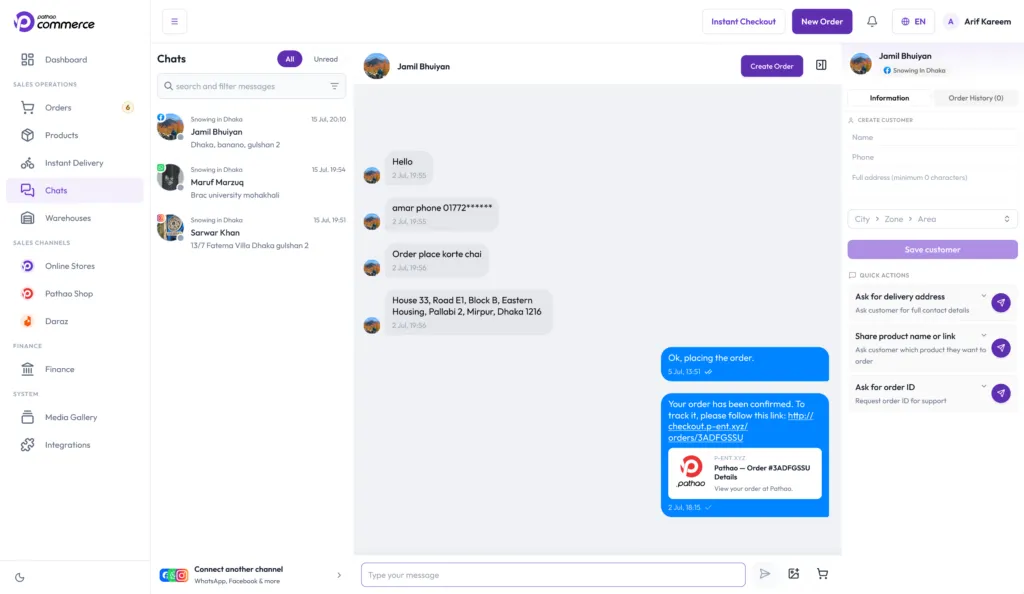
Click the Create Order button to finalize it! Two great things happen simultaneously the moment you click it:
-
For your Customer: The system automatically sends a successful order creation message, complete with a live tracking link, directly into the customer’s chat box.
-
For your Operations: Unlike normal store orders, chat-created orders completely bypass the “New Orders” tab and go straight into Processing. No manual “Accept” or “Ready-to-Ship” action is required from you; fulfillment starts immediately!
Not Receiving Messages or Is the Button Not Working?
Sometimes you may notice messages arriving on your Facebook or WhatsApp account, but they do not appear in Pathao Commerce Chat. Or the Create Order button may appear greyed out or inactive.
Why Does This Happen?
-
Expired Tokens: For security reasons, Meta automatically expires login tokens every 60 to 90 days.
-
Missing Intent Data: If the Create Order button is missing or greyed out, the system simply hasn’t detected enough text details to automatically build the modal.
Simple Solution
-
Go to the Add-ons section from your dashboard sidebar.
-
Click the Disconnect button next to your Facebook Messenger or WhatsApp channel.
-
Click Connect again and re-log into your Meta account to authorize the platform.
-
If a button is inactive, you can also manually initiate a blank order form from your main dashboard menu.
Once the security token is refreshed, everything will instantly sync up and start working normally again.
Start using Pathao Commerce Chat today to bridge the gap between social selling and instant fulfillment, all from a single screen!