Build your branded online store with zero coding
Thinking of building a professional online brand? Pathao Commerce gives merchants a completely free opportunity to launch their own professional website (yourstore.pathao.shop) with ready-made themes and branding.
Let’s go step by step on how to set up your storefront, make it live, and what to do if anything goes wrong.
Step 1: Create Your Online Store
If you are setting up your website for the very first time, follow these steps to lay the groundwork:
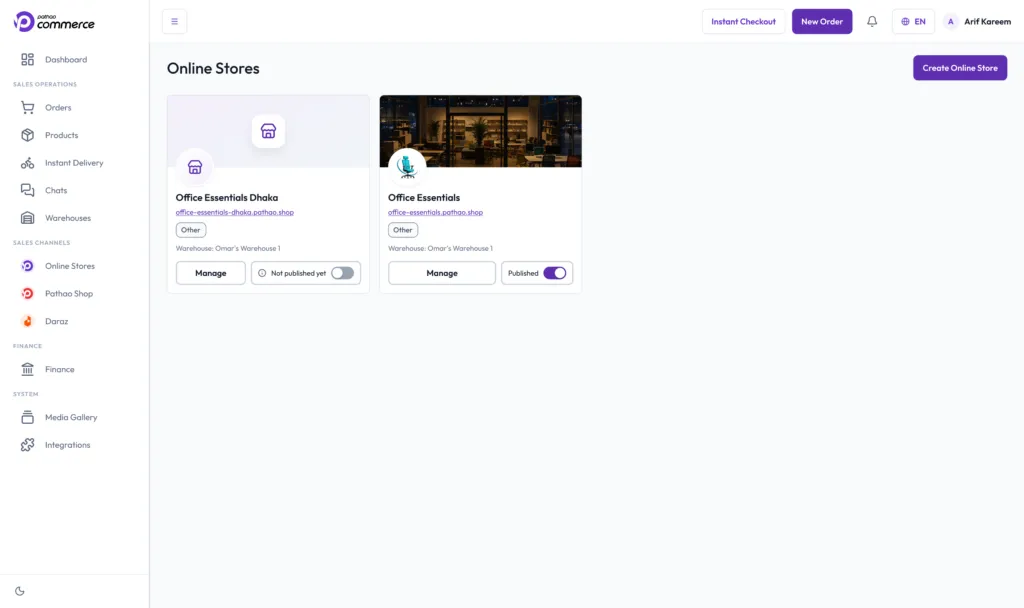
- Navigate to the Online Store section from your merchant dashboard.
- Click the Create Online Store button located on the upper-right side of the page.
- Fill out the foundational information in the pop-up modal:
- Store Name: The public name of your business.
- Store Category: Select the category that best fits your business. (If you don’t see your specific category, simply select “Other”).
- Subdomain Name: This will form your website link (e.g., yourbrand.pathao.shop).
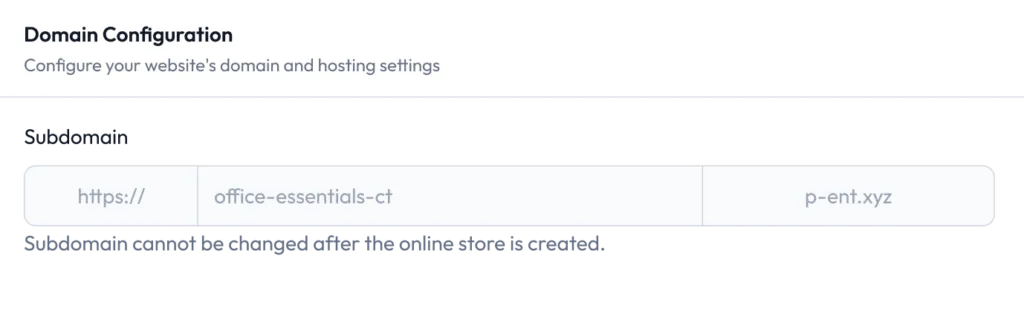
- Pickup Warehouse: Choose the warehouse from which your website orders will be fulfilled.
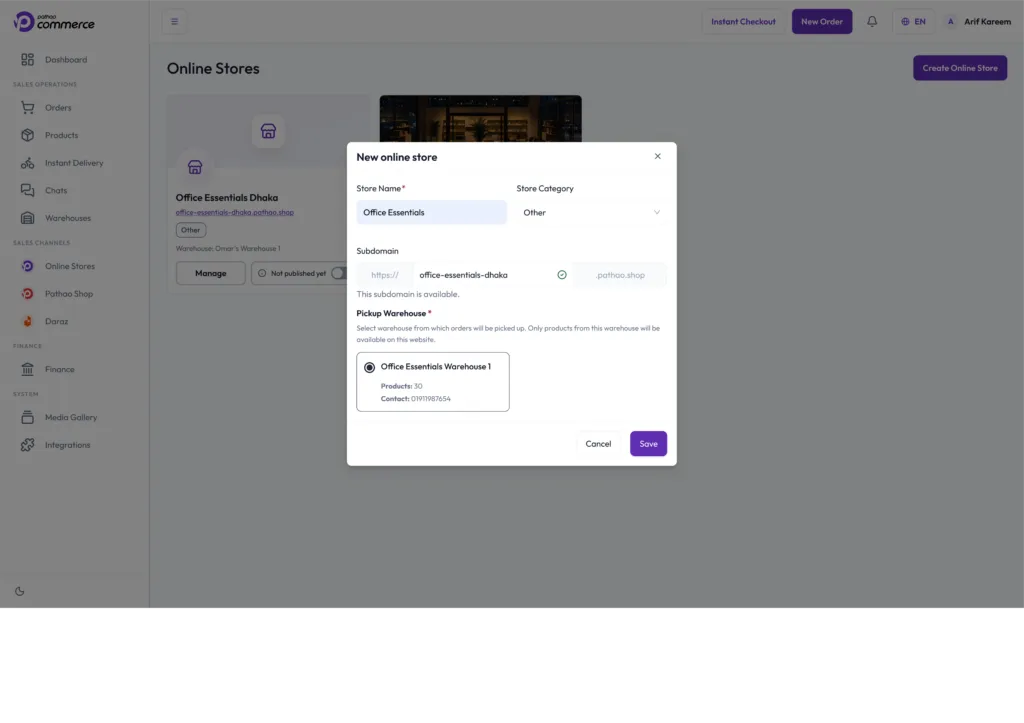
Important Note: Take your time and double-check your spelling! Once you click Save, your subdomain/domain name is permanent and cannot be changed. Click Save. You will automatically be redirected to the main store management page.
Step 2: Manage & Customize Your Storefront
Once you are on the management page, you can fully customize the look and feel of your brand. You can update these visual and policy details at any time:
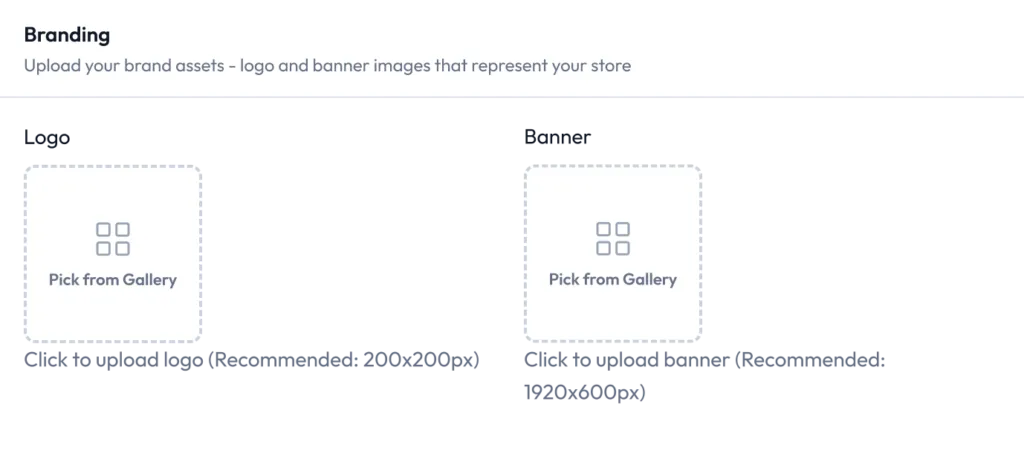
- Upload Your Brand Assets:
- Logo: Upload a square image (Recommended size: 200 × 200 px).
- Cover Banner: Upload an eye-catching banner (Recommended size: 1920 × 600 px).
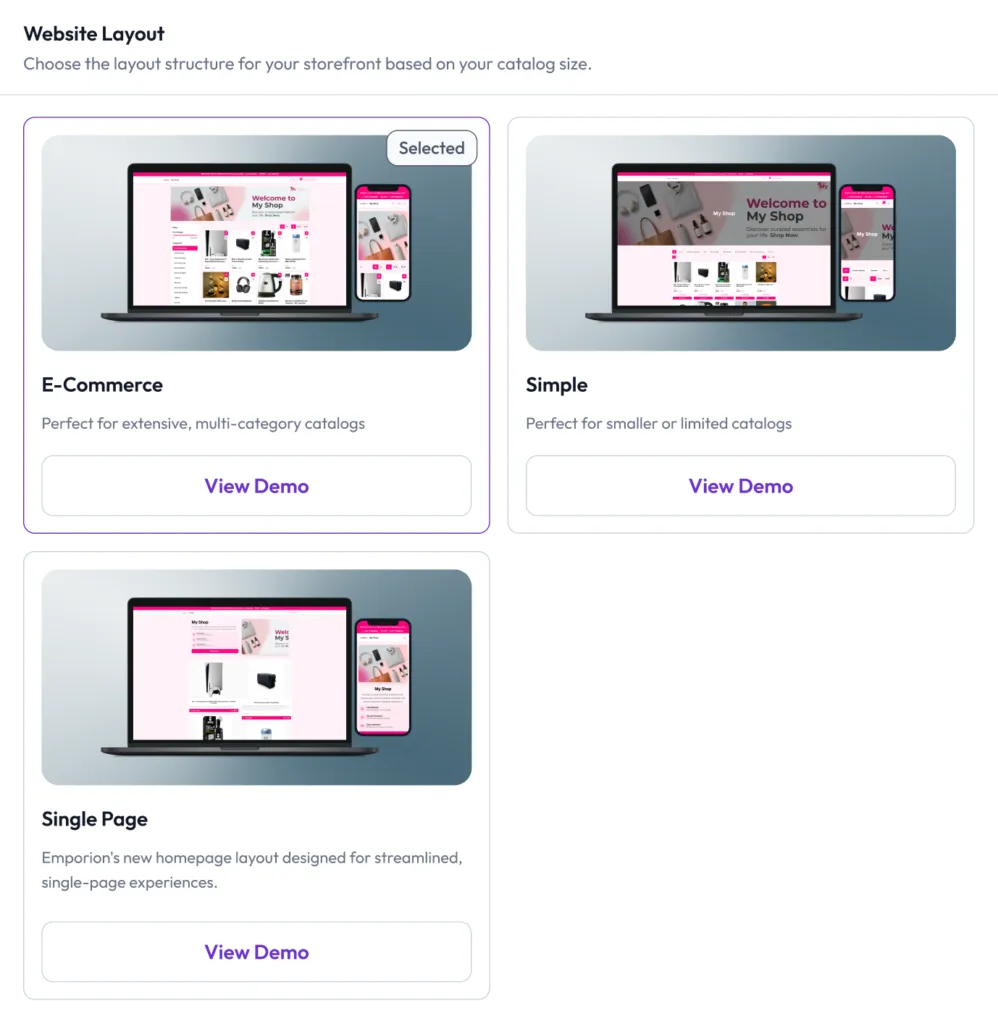
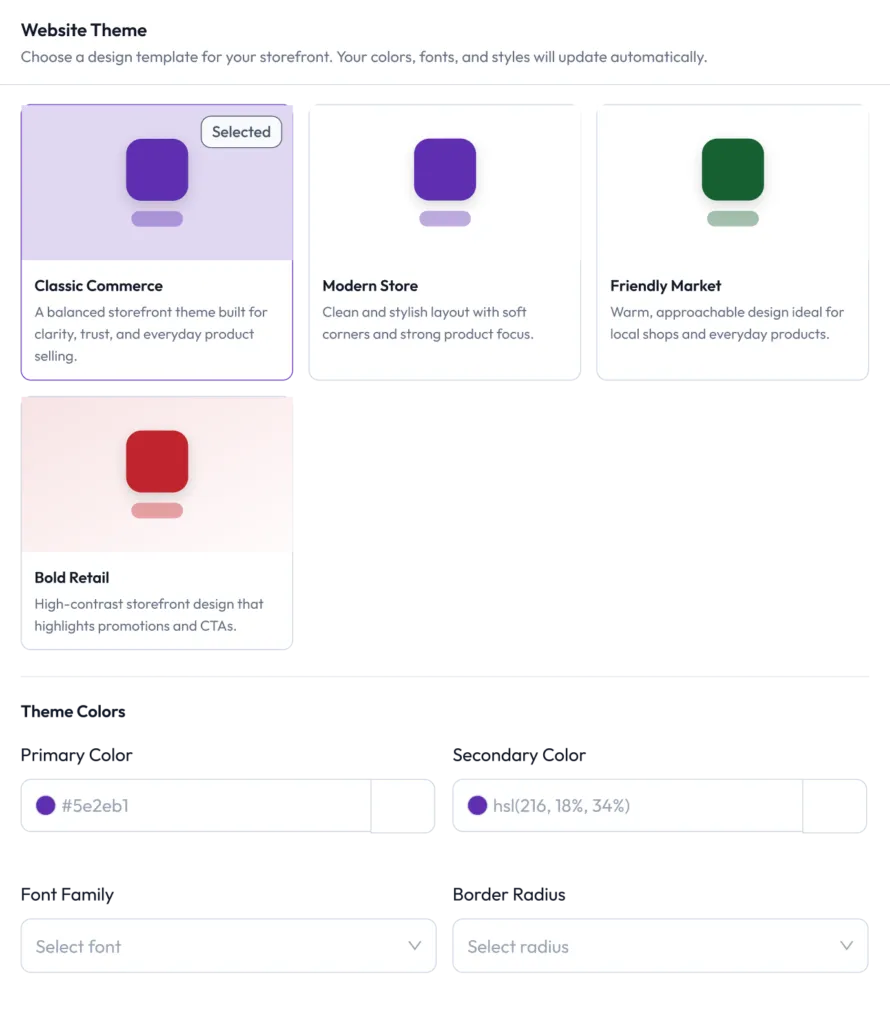
- Choose Your Theme & Layout: Select your preferred Website Layout (like “Classic Commerce” or “Modern Store”), choose a Theme Color that matches your brand identity, and customize your fonts and product card appearance. You can preview/demo the layout before making it official!
- Write Clear Policies: Go to the Return and Refund Policy tab. Use clear formatting, like bold text, to make your terms easy to read. A well-structured policy builds immense customer trust.
- Link Your Socials & WhatsApp: Go to the Socials tab and add your Facebook page link and a WhatsApp number (include your country code, e.g., +880). Adding your WhatsApp number automatically places a “Chat with us” button on your site, driving higher sales through direct customer messaging!
- Add Advanced Marketing Tools: Ready to scale? Navigate to the relevant tabs to integrate your Meta Pixel ID and Conversion API key for advanced analytics and to easily generate an ad catalog from your online store products.
Step 3: Going Live
When you are ready for the world to see your store:
- Switch the Published toggle to ON.
- Click Save Changes.
- Click Visit Website to see your beautiful new storefront live!
Important Note: Simply saving your settings will not make your store live. The Published toggle must be switched to ON to pull your website out of its “Draft” state.
Things to Keep in Mind
- The “Save Before Switching” Rule: When moving from one configuration tab (e.g., General) to another (e.g., Socials or Policies), always click Save Changes first. If you switch tabs without saving, the information you just entered will be lost.
- Warehouse Alignment: Make sure you select the correct pickup warehouse. If you choose the wrong one, the courier will be sent to the wrong address to pick up your packages.
- How Website Orders Work: When a customer buys a product from your live site, the order is not shipped automatically. It will appear in your New Orders tab on the dashboard. You must manually review and process the order (using the Accept / Ready-to-Ship flow) to trigger Pathao Courier fulfillment.
- Product Visibility: Your products will only appear on your live website if they are marked as Active and have Available Stock in your inventory.
Pro-Tips
Once you add your WhatsApp number, a “Chat with us” button will automatically appear on your website. This allows customers to message you directly, which can help increase your sales.
Quick Solutions to Common Issues
If you ever notice that your policies aren’t showing up, your social links are missing, or you are getting a “404 Not Found” error when clicking your website link, don’t worry! This almost always happens for two simple reasons:
- Changes weren’t saved before you switched tabs during setup.
- The website was not published properly.
How to fix it:
- Go back to the tab with the missing information.
- Re-enter the details.
- Click Save Changes before clicking away to another tab.
- Double-check that your Published toggle is switched to ON and saved.
Start building your Pathao storefront and take your business online with a professional look today!